
Testing your Making Tax Digital Bridging Software Setup for Income Tax

MTD Bridging Software Testing
100PcMTD allows you to integrate and test submit your data to HMRC's sandbox test servers without fear of messing up your real HMRC records.
This is a great way to prove and gain confidence in your MTD filing process before you start making submissions for real.
We are not aware of any other MTD software that offers this feature!
OK. Tell me more. What do I need?
- A PC or Laptop (Running Windows, MacOs or Linux).
- 100PcMTD App installed.
- Template Spreadsheet or CSV file cross-linked to your accounts data.
Installers and templates can be found on the 100PcMTD Home Page
All new users can try 100PcMTD for free for 6 months to see if it works for you.
What are the steps for testing my MTD Process?
- Run the 100PcMTD App and click register for a new account.
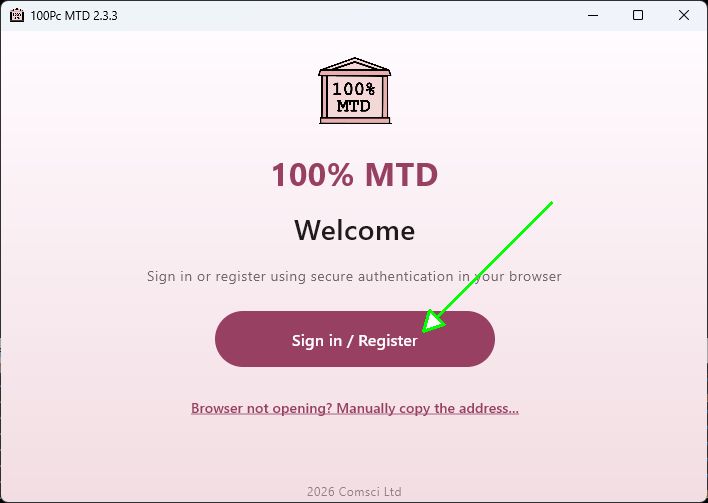
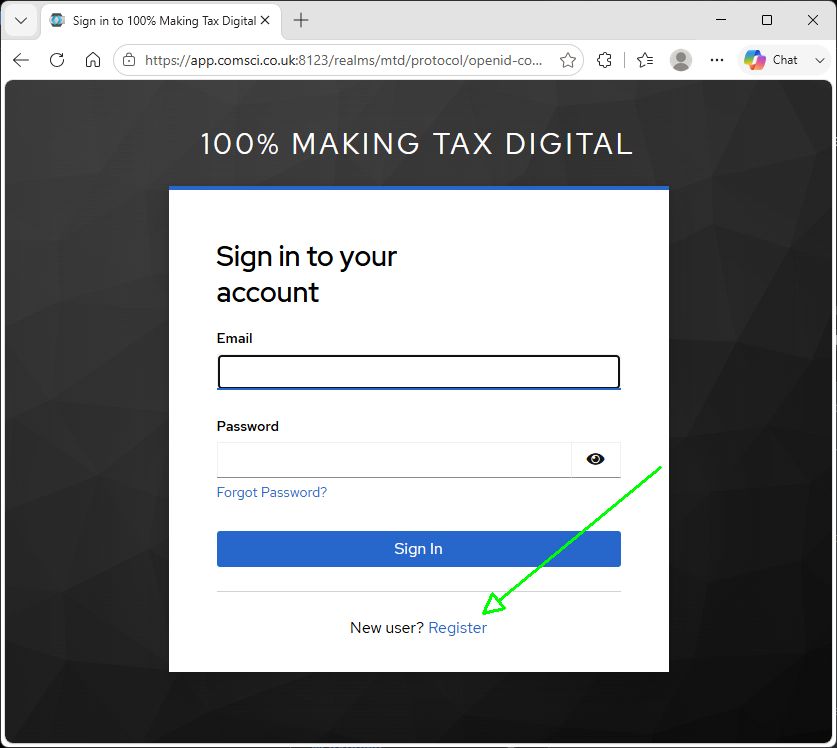
- Your browser should open. Here you need to click on New User? Register.
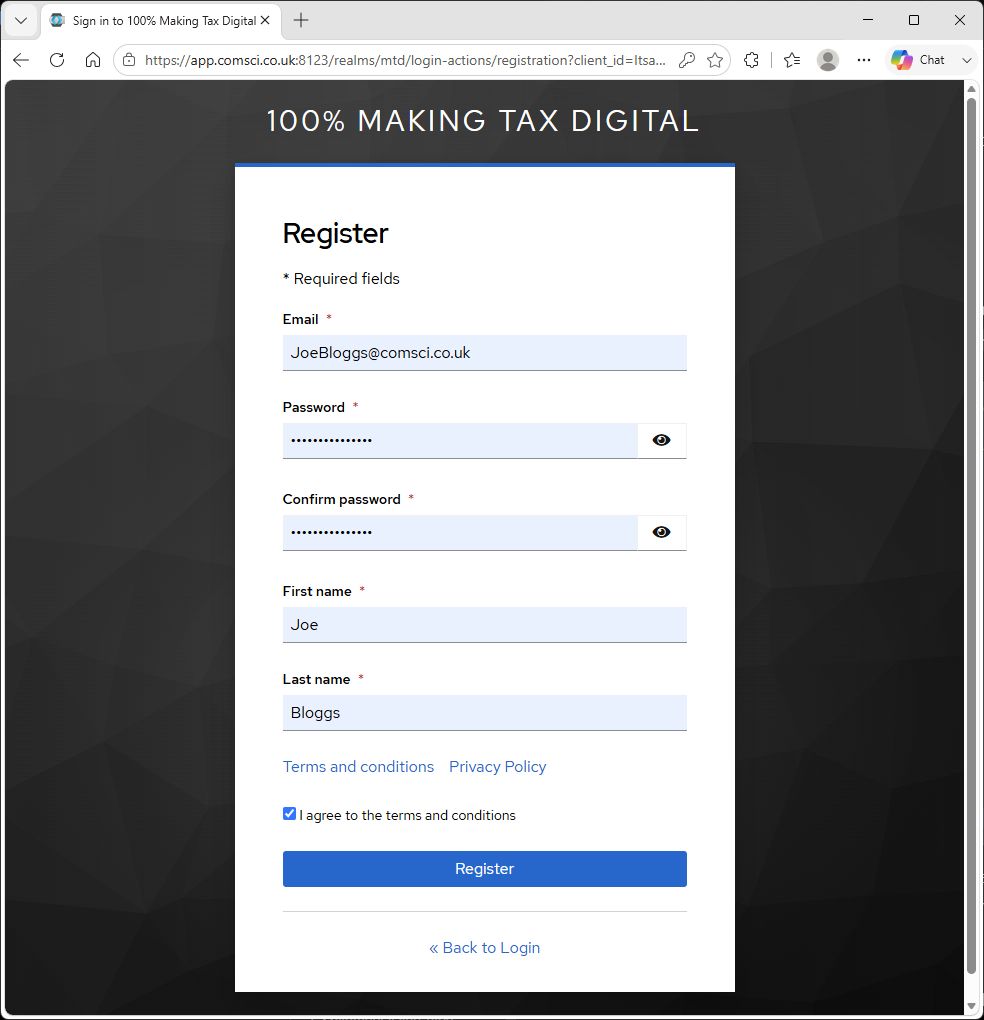
- Fill in the registration form with your details, then click Register.
- Check your email for a verification link and click on it.
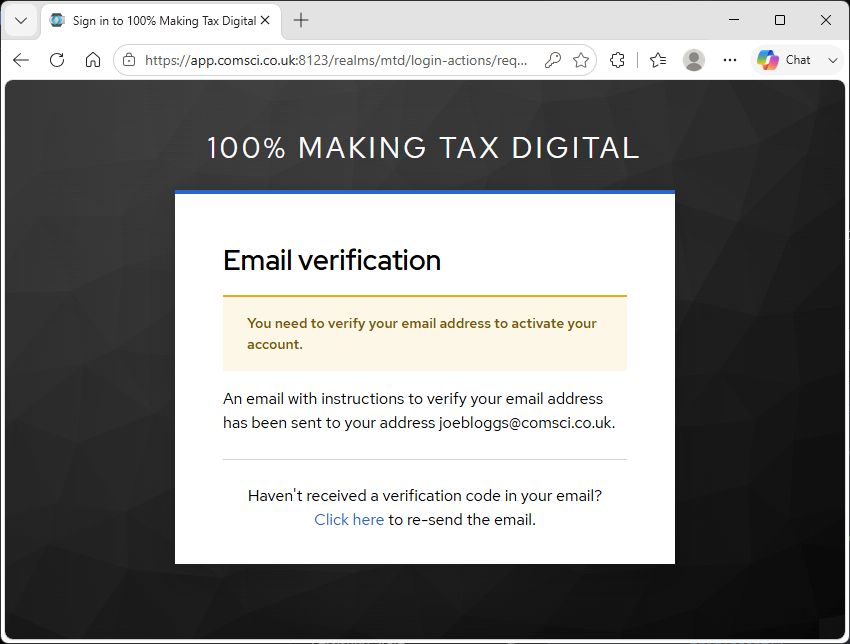
- After clicking the link you should see this screen in your browser.
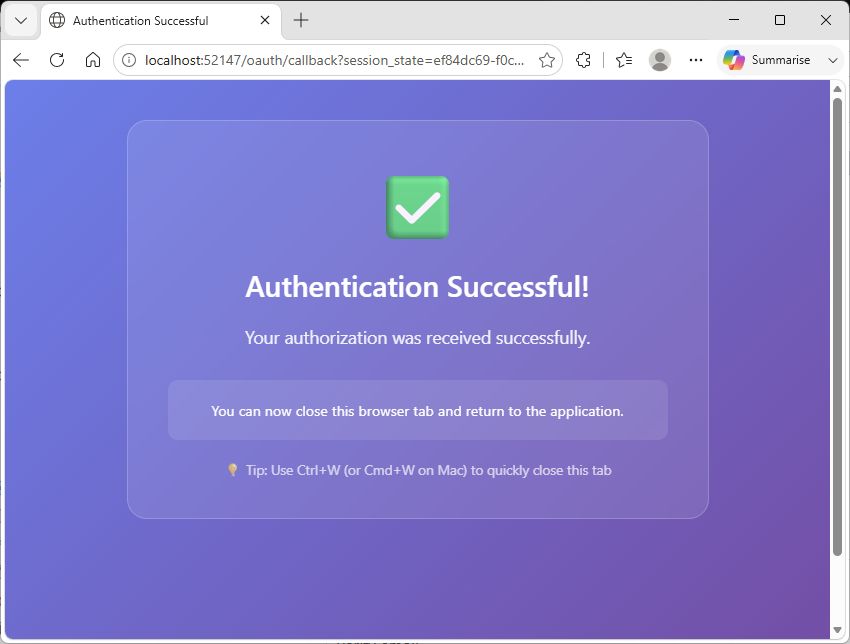
- You can now close the browser and return to the 100PcMTD App.
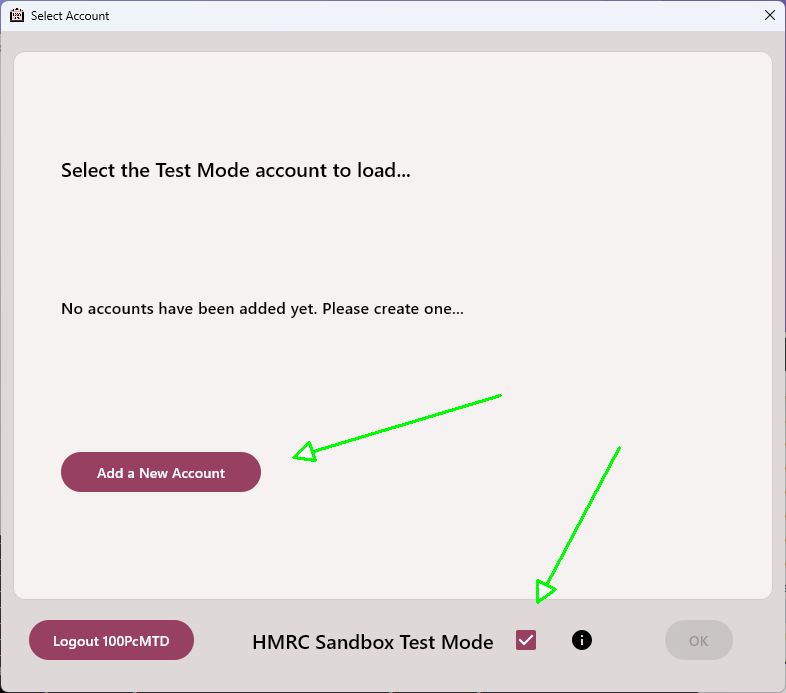
- In the App, click on HMRC Sandbox Test Mode and then Add a New Account.
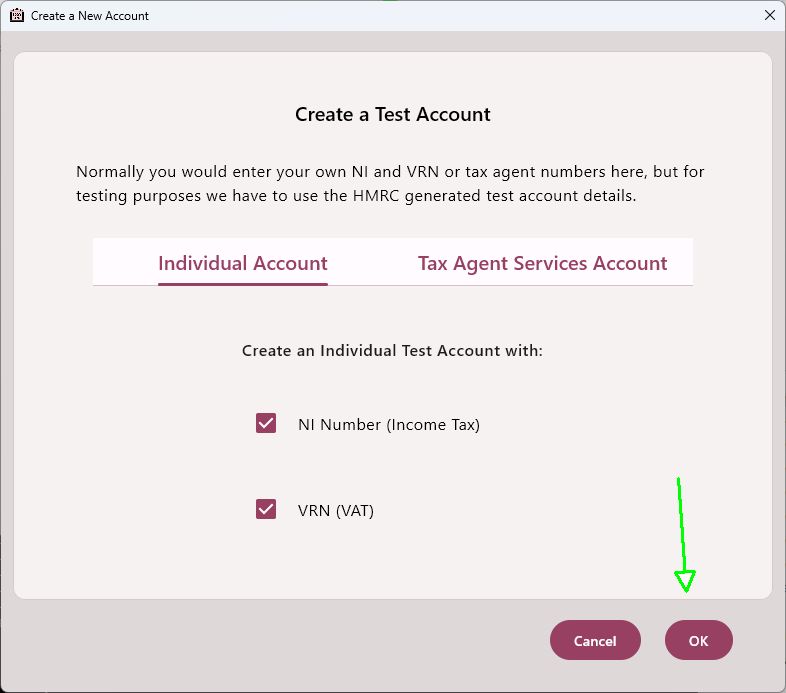
- Click on OK to create an Individual Account with an NI number and a VAT number.
- Click on the new account to select it and click on OK to close the popup.
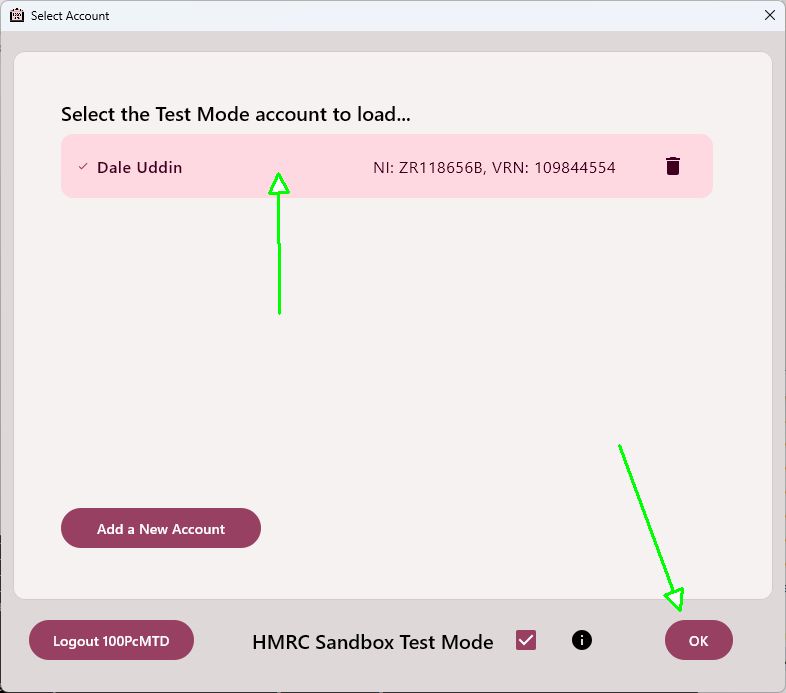
- After a few moments you will be asked to Grant MTD Access for the new Account. Click on Grant Access.
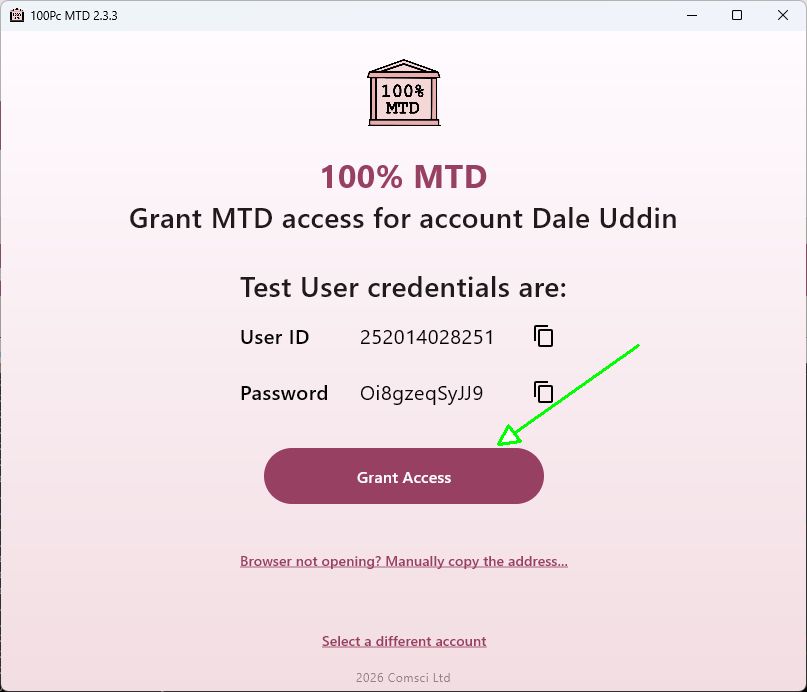
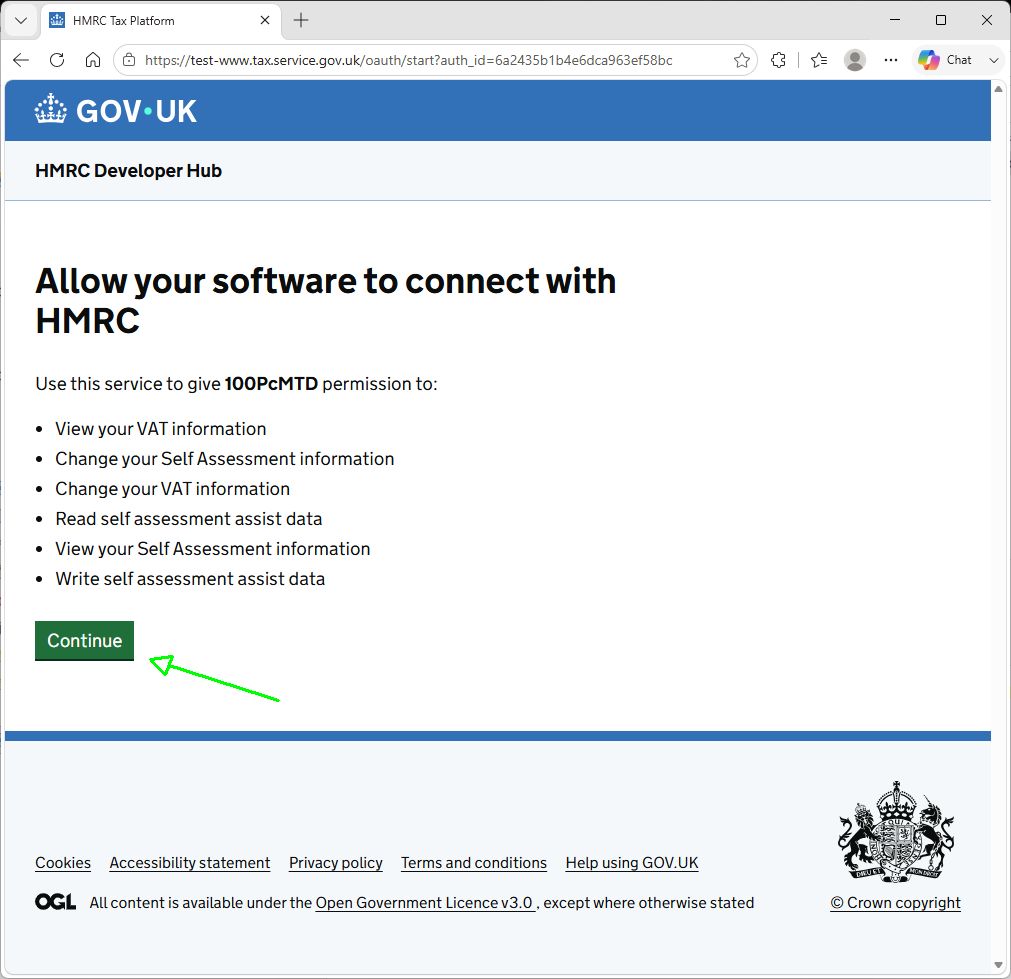
- This will open your browser on the HMRC test server where you can login as the test user. Press Continue.
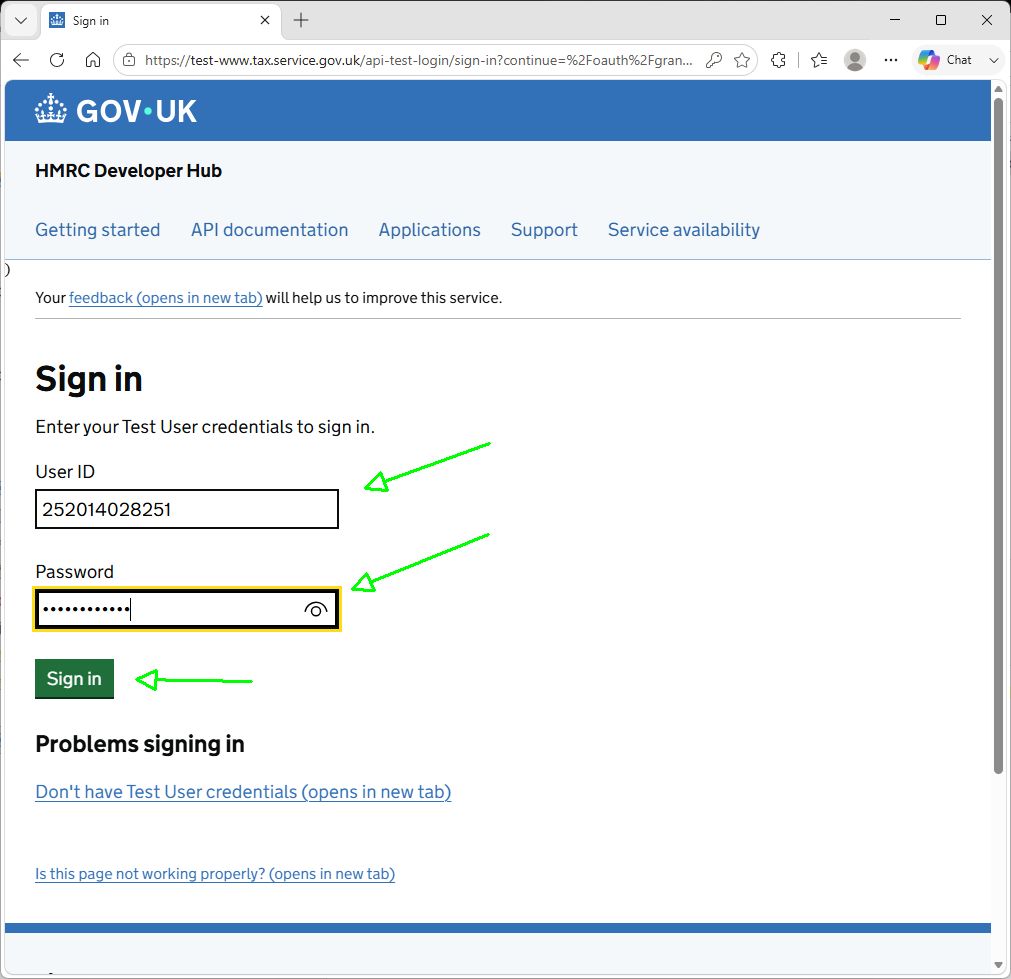
- Then press Sign in to the HMRC Online Service.

- The App displays the test user ID and password. These can be copied and pasted into the sign in screen.
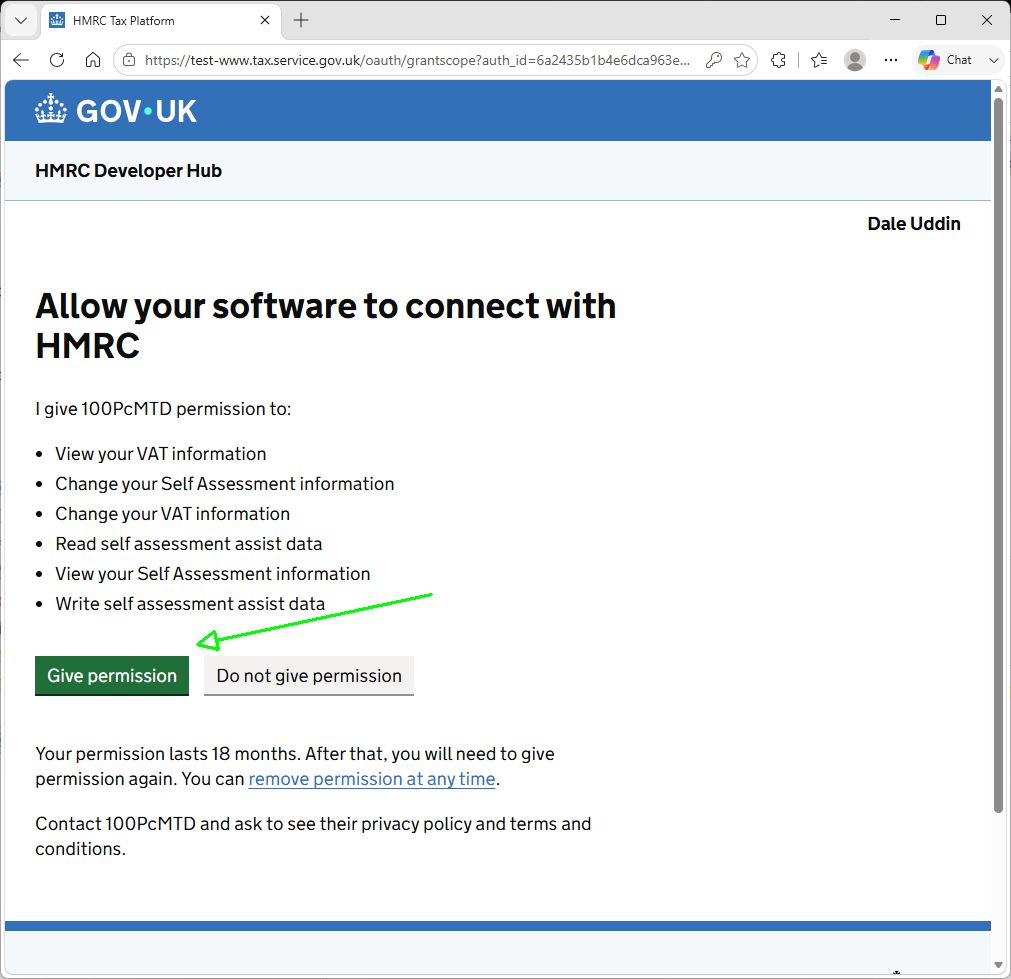
- Press Give Permission to grant permission to the App.
- Valid Grant should be displayed.
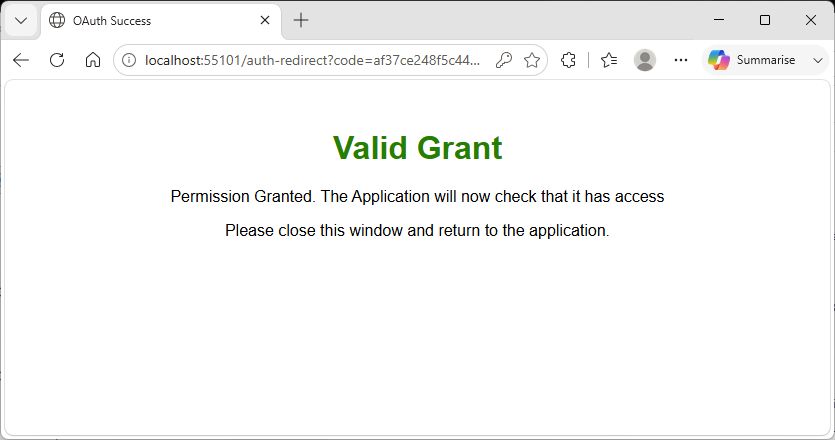
- You can now close the browser and return to the 100PcMTD App.
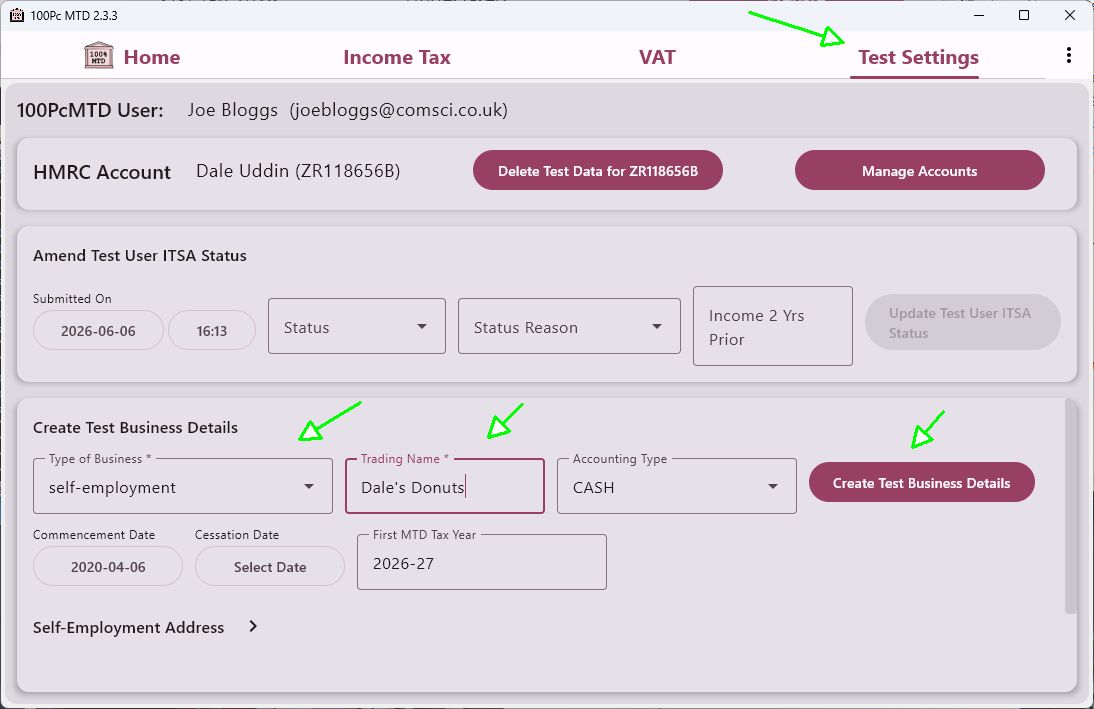
- Click on Test Settings and create a test self-employment or property business that matches your situation. Here we have selected a self-employment called Dale's Donuts. You could also choose UK Property or Foreign Property instead or as well if desired.
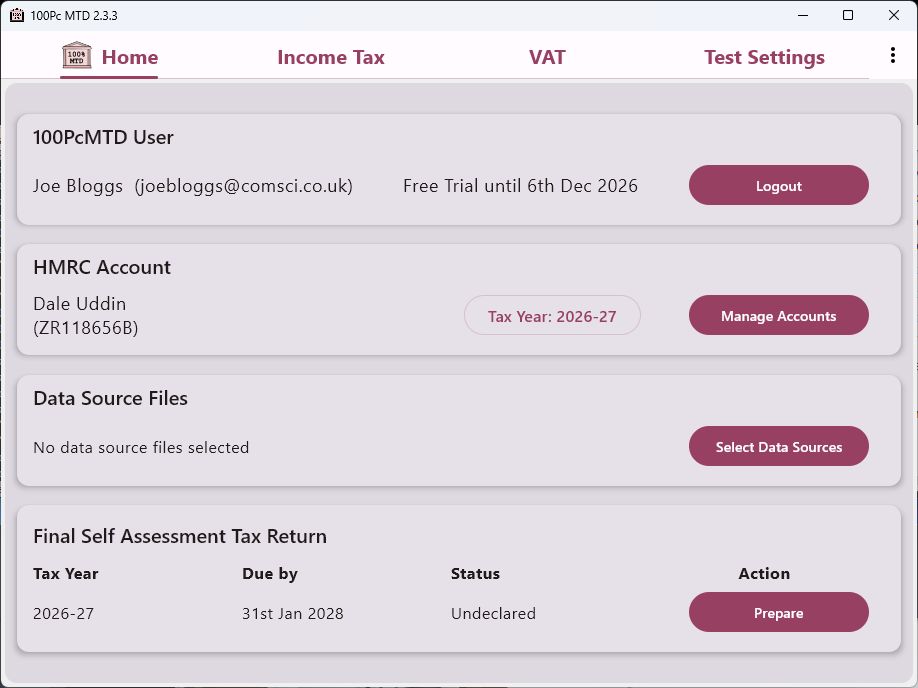
- The App will show new tabs corresponding to the created businesses.
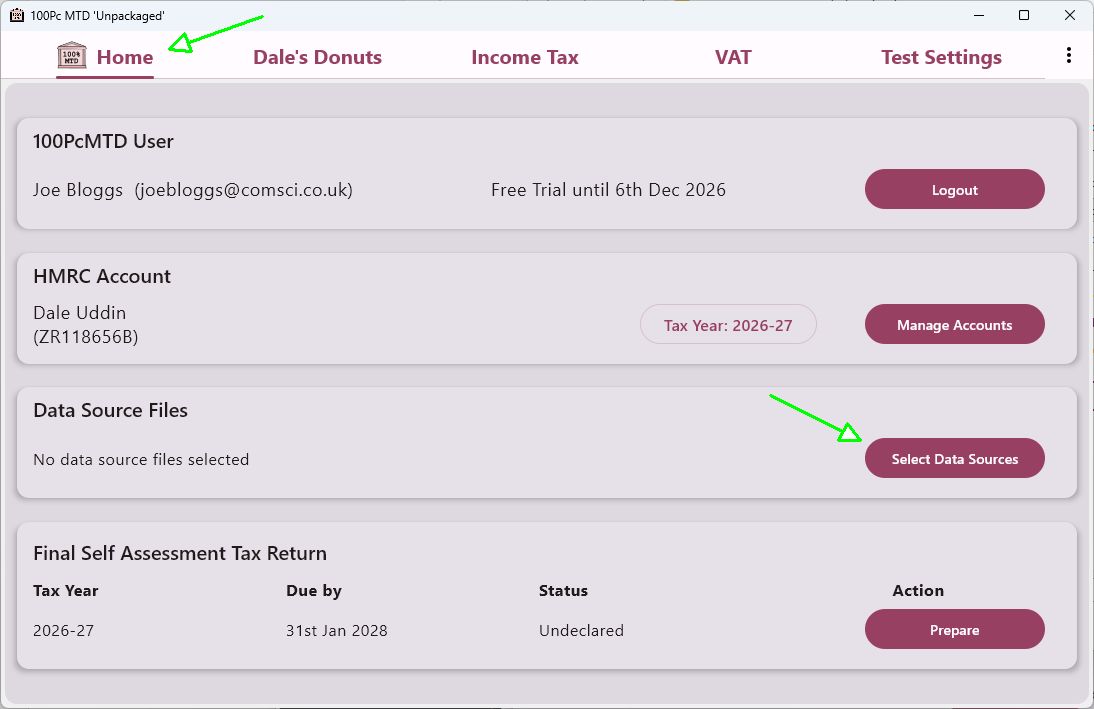
- Before we can submit data we need to link a data source. This is done by clicking Select Data Source from the home screen.
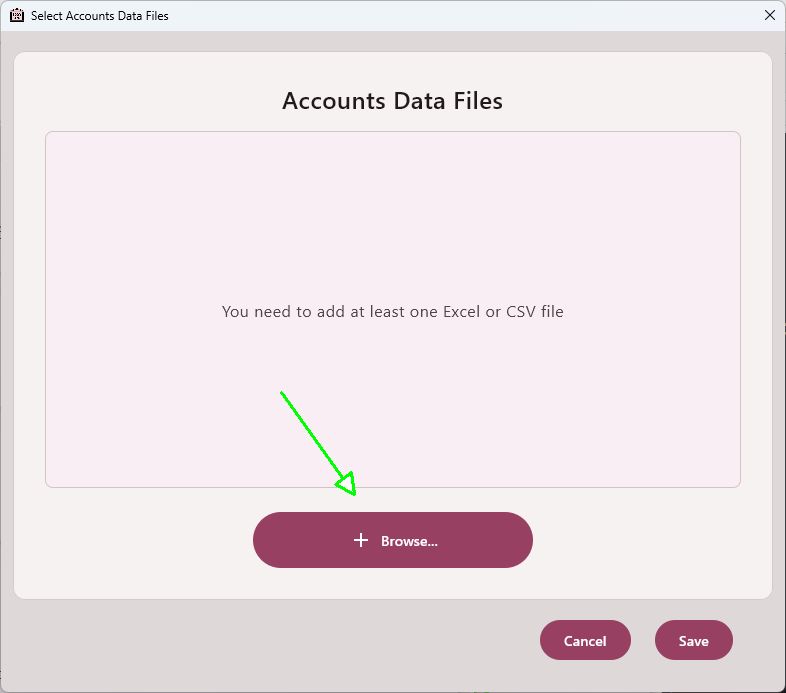
- Browse and select a suitable Excel or CSV source file that incorporates one of the templates available from the 100PcMTD website.
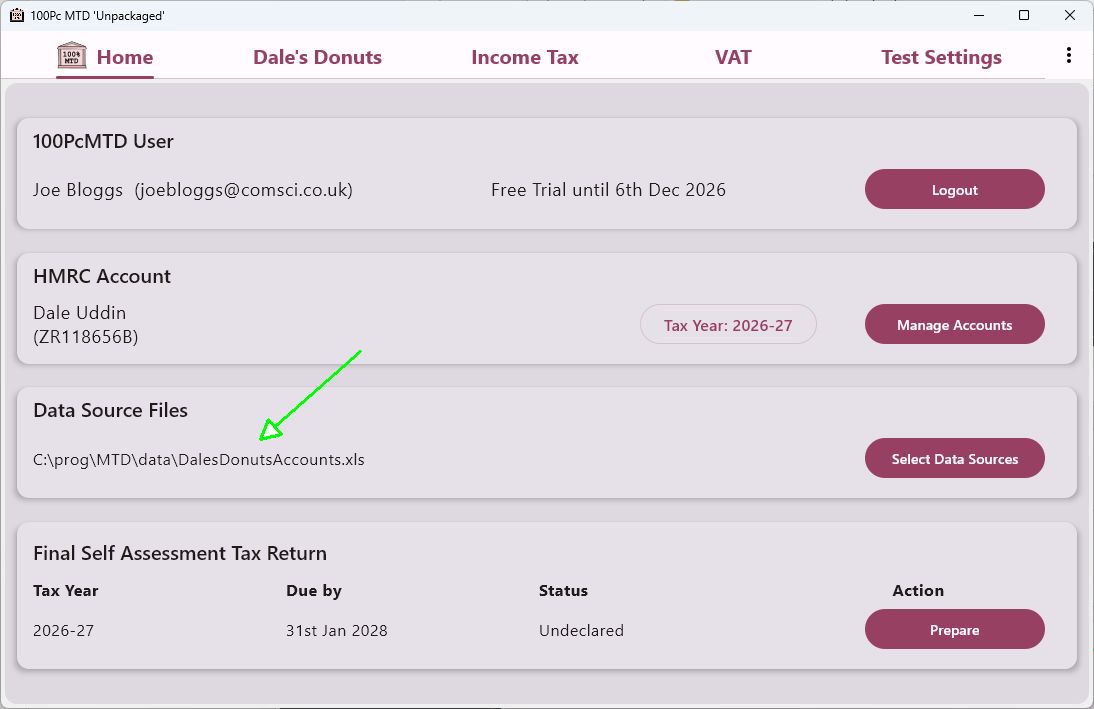
- Here I have selected DalesDonutsAccounts.xls
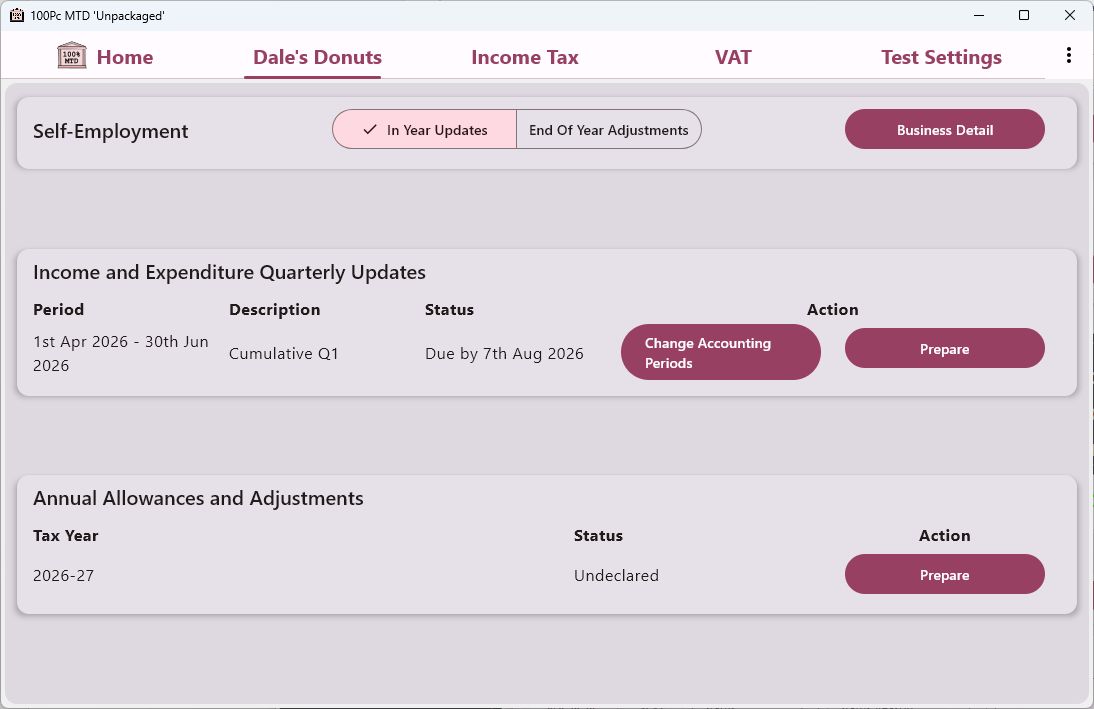
- Now we can return to the Dales Donuts tab and prepare the quarterly update. Before we submit the first update we can choose either standard or calendar accounting periods.
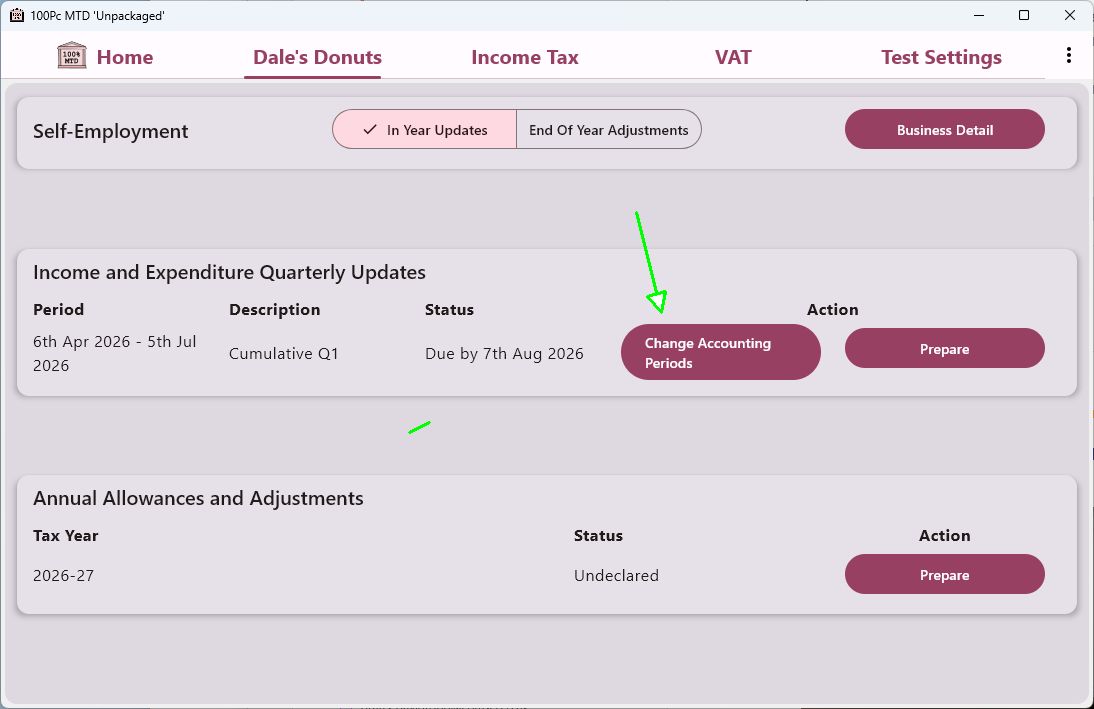
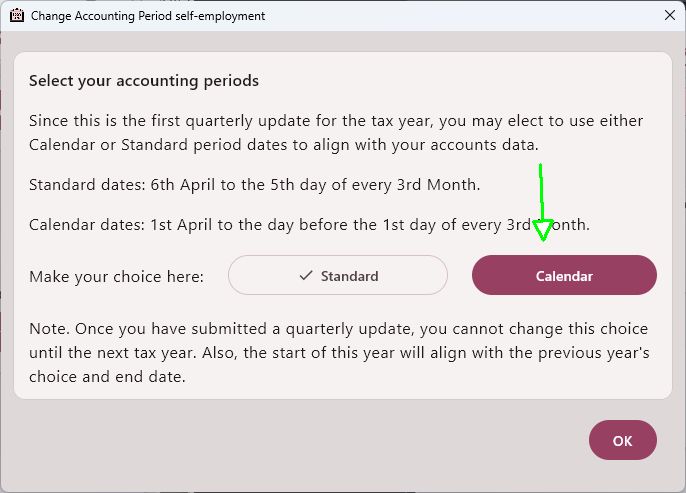
- Here I'll choose calendar periods. You should select whatever aligns with your accounts.
- Now on clicking prepare, you should be presented with a screen similar to this
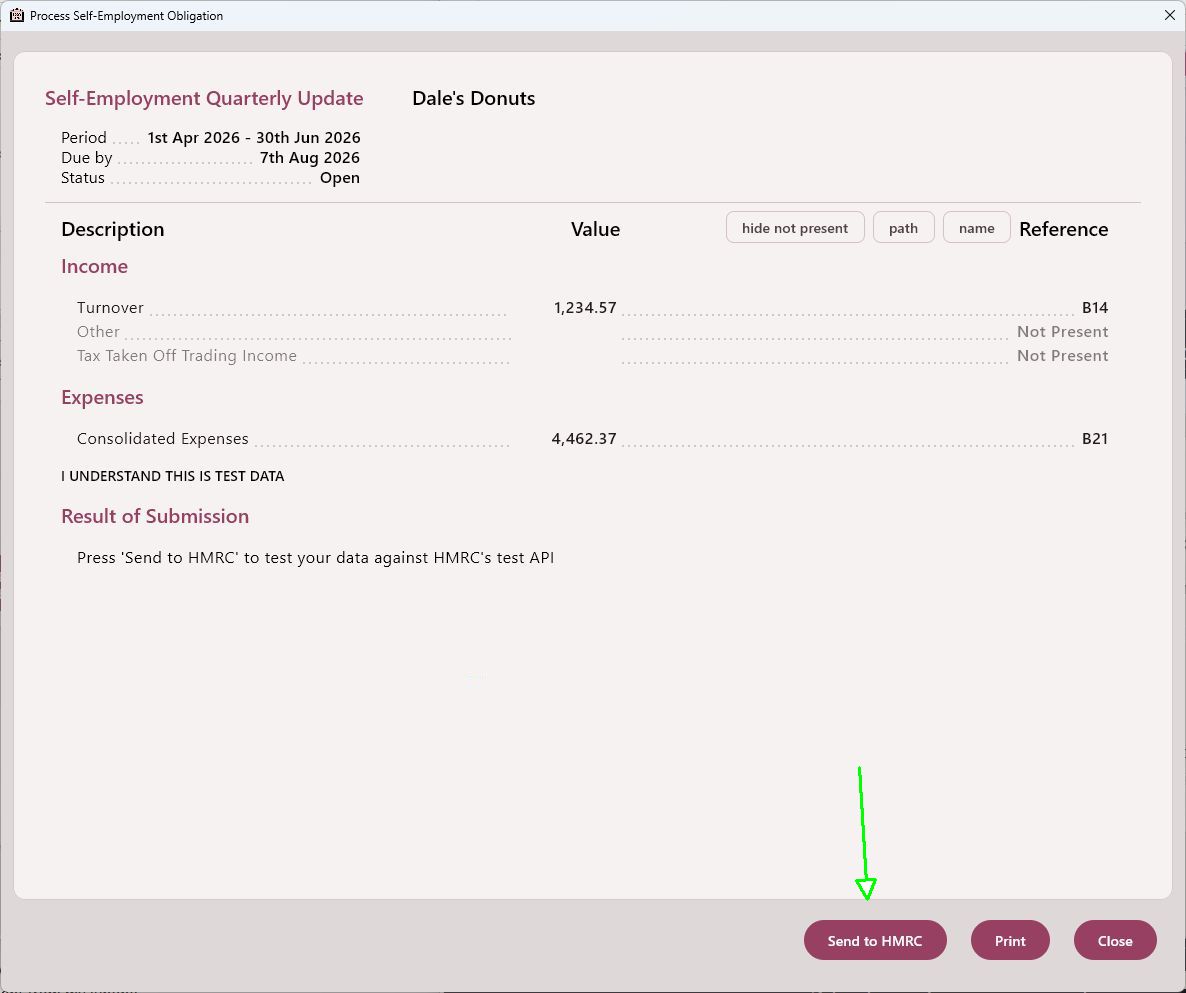
- Clicking Send to HMRC and agreeing to the declaration will submit the data to the test server and you should get a success response
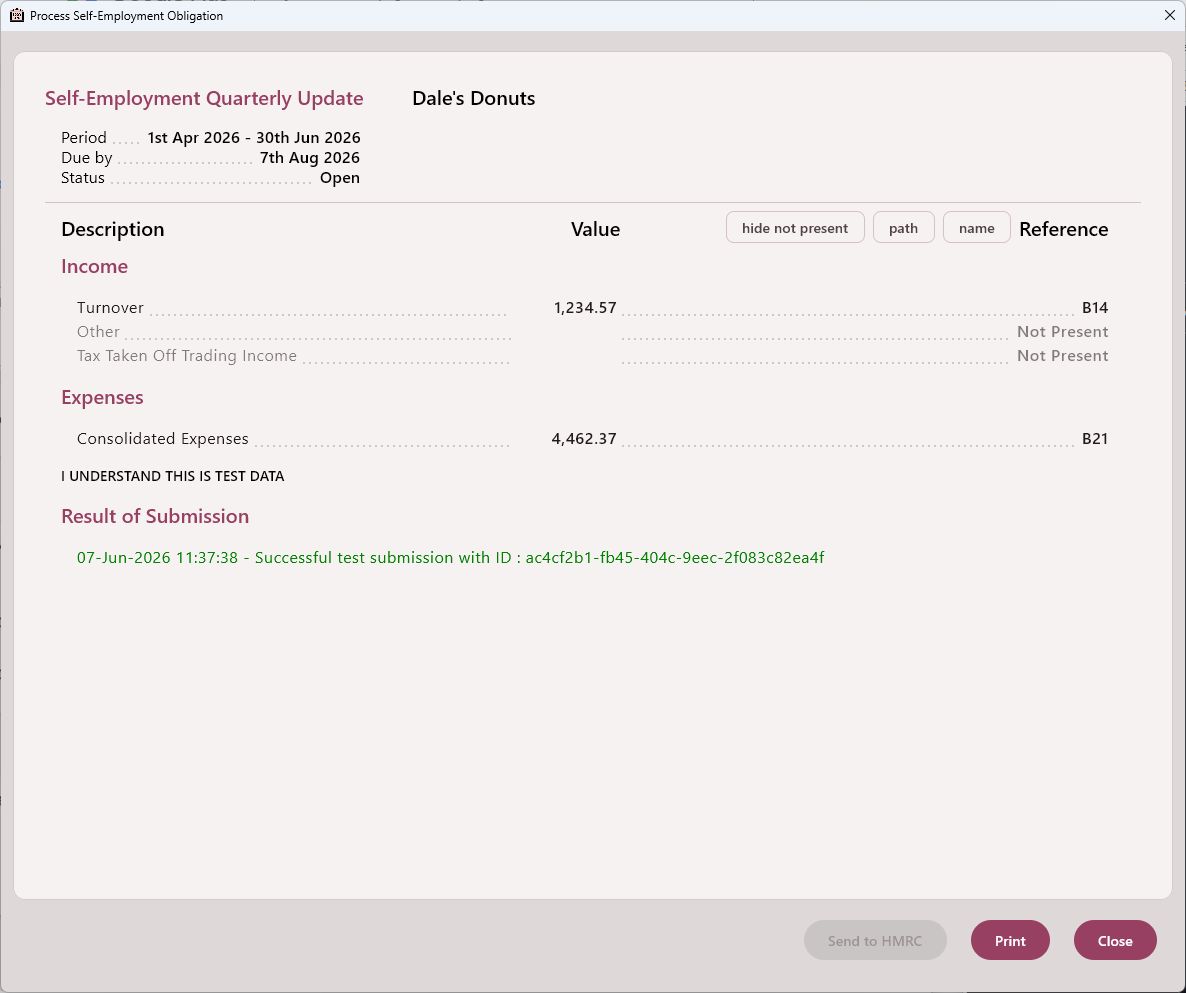
That should give you an idea of how to test the integration of your data with 100PcMTD. You should be able to file all 4 quarters of updates, make amendments and update the Annual Allowances and Adjustments as desired. Having filed all 4 quarter updates, you can then perform some End of Year Adjustments, such as triggering a new adjustable summary and adjusting this summary as required.
Limitations of the Test Service
The filing of quarterly updates, Annual Allowances and Adjustments and the Business Source Adjustable Summary are stateful. That is, the data is stored in the test server reflects what you have submitted. You can file whatever you like without fear of messing up your real HMRC account. The HMRC test server will retain data for 7 days after which it is discarded and you have to start again.
However, note that the Losses and Claims, Income Tax Data and VAT data in test mode is NOT Stateful. That is the displayed data is just canned responses that give you a feel for what the service will look like but will not reflect your submitted data.